Point-and-click test creation
What you can select and change, big blocks, and previewing variants.
 Written by Aleksandar Simov · Updated · 5 min read
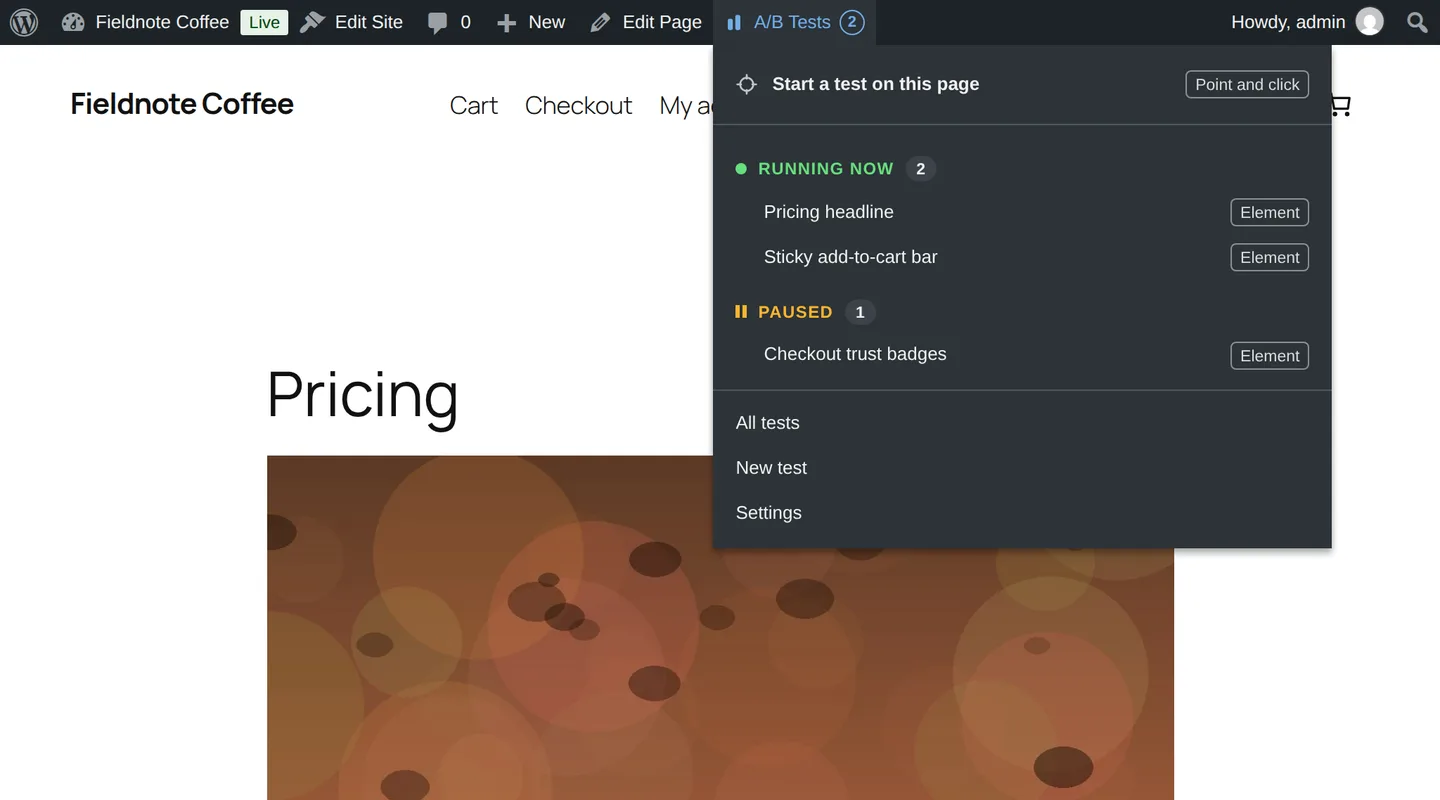
Point-and-click works on the front end while you are logged in with the admin bar showing. Choose A/B Tests › Start a test on this page, click a headline, paragraph or button, type the variant, preview it in place, choose a goal, then start. One element per test, and every change is a step you can undo and redo.
1. Where it works and what you can select
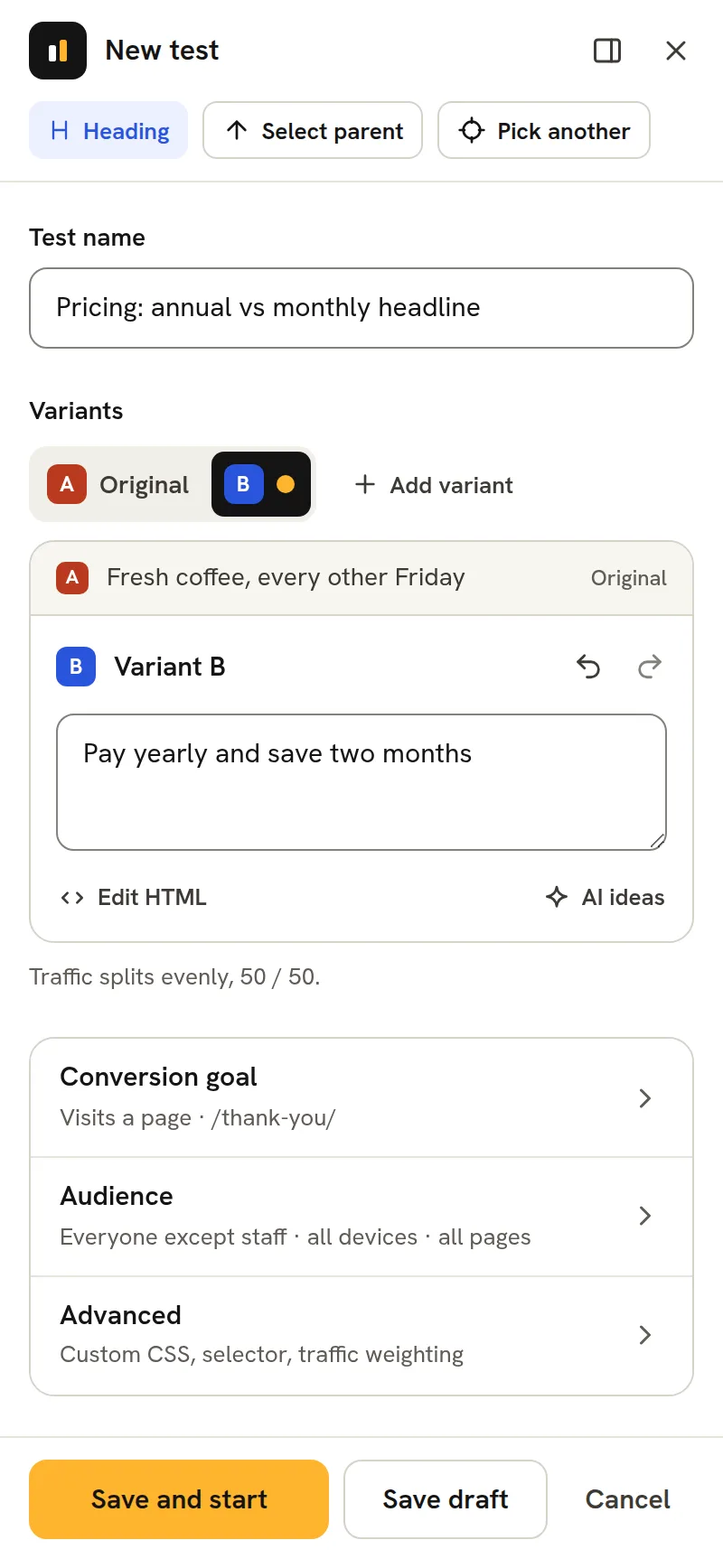
Point-and-click works on the front end while you are logged in with the admin bar showing (administrators, or any role granted the Pro capability). Open A/B Tests in the admin bar and choose Start a test on this page, then click the element you want to test: a headline, a paragraph, a button. While you pick, the element under the pointer is outlined and named (Heading, Button, Section), and the up arrow takes the part around it. The panel opens docked beside the page, which makes room for it, with the original, a field for variant B, a tab per variant that also shows it on the page, and the conversion goal; on a phone it is a bottom sheet that opens on the variant tabs and the field you are editing, and pulls down to a peek so the element stays in view while you type. That same menu lists every running and paused test, each tagged with its type, with a red Split off tag on any whose traffic split is broken and the ones live on the page you are looking at marked On this page, so you can start a variant preview, end it, or jump to the dashboard without leaving the front end.
2. What you can change
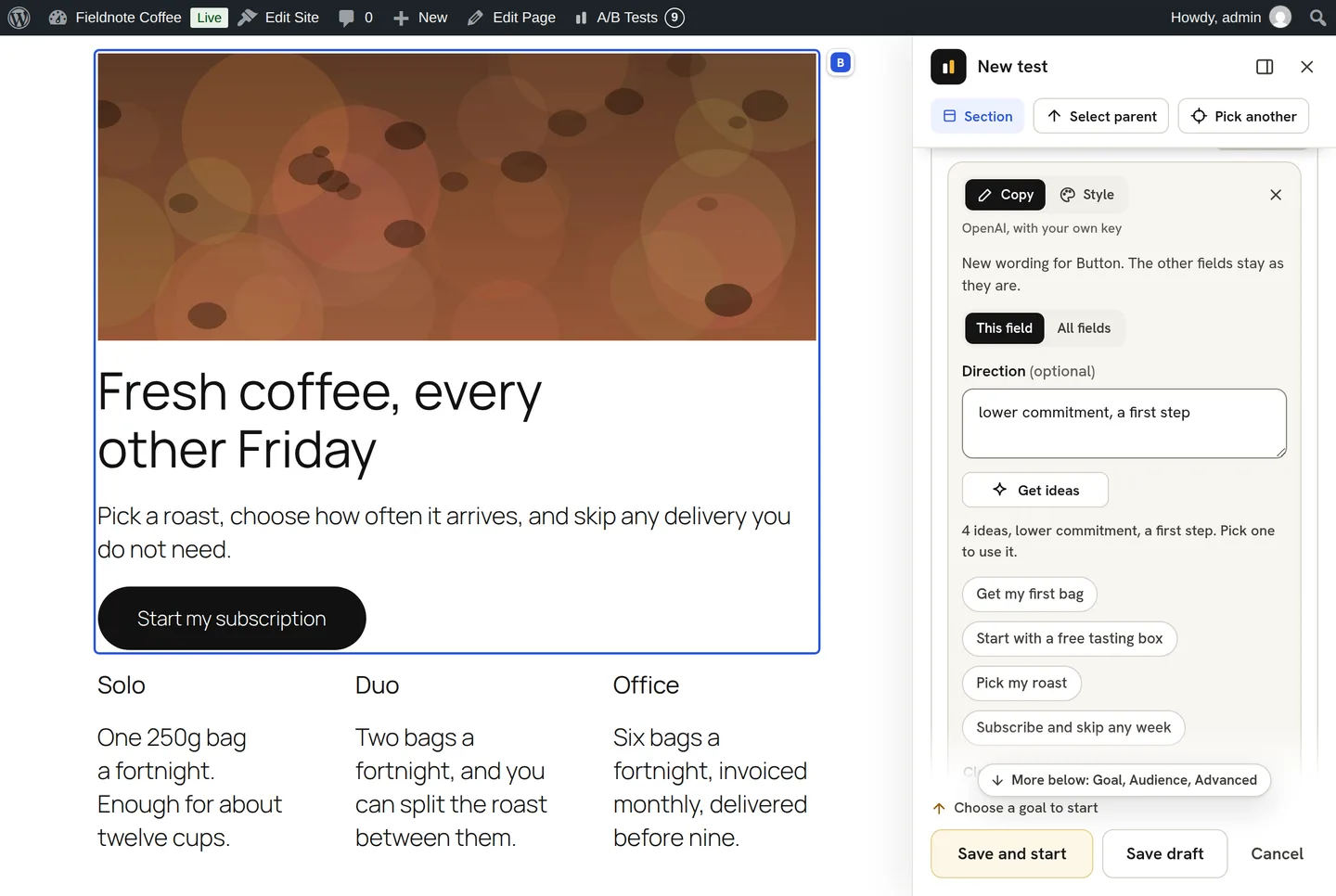
What you can change: the text of a heading, paragraph or button; a whole section as one field per part, named by its role, with its images swapped from the Media Library and the layout kept as it is (a list of six fields or more shows three and folds the rest under Show N more fields); the HTML of one field through the button beside its name, Edit this field’s HTML, or of the whole element through Edit HTML, both checked as you type, so a broken tag is named under the field and Save and start waits until it is fixed; and, in Pro, custom CSS that is scoped to the picked element, AI Copy for the words and AI Style for the look of a field, as scoped CSS. Every change is a step: Undo and Redo in the variant's head step through that variant's own history and say what they undid, and a changed field's Changed mark puts its original back. One element per test. Every variant can be previewed in place before the test starts, a variant you remove comes back with Undo for ten seconds, and the selection and the variants stay editable while the test is a draft.
3. Big blocks and what is not supported
Big blocks: selecting something large or interactive (a whole section, a product grid, a form) is allowed, but rewriting a dynamic block's markup can break its own scripts. Above 30 elements, or when the block contains forms, inputs, iframes or interactive blocks, the panel says so in a plain note with two answers: pick a smaller part inside it, or keep the block and preview each variant on the page before you start. Elements inside iframes or shadow DOM are not supported. A block a builder, popup or lazy loader inserts after the page loads is handled: the runtime watches for it and applies the variant when it appears. What it does not do is re-apply the change if a script later re-renders an element it had already changed.
Want the longer read? See how it works, start to finish, or browse all docs.
Common questions
Which elements can I select?
A headline, a paragraph, a button: any element on the page. Above 30 elements, or when the selection contains forms, inputs, iframes or interactive blocks, the panel suggests picking a smaller part and lets you keep the block. Elements inside iframes or shadow DOM are not supported. Markup inserted later by a builder, popup or lazy loader is picked up when it appears.
Can I change more than the text?
Yes. A section opens as one field per text and one per image, so you can swap a picture from the Media Library without touching the markup; one field or the whole element can be edited as HTML, checked as you type; and in Pro, custom CSS is scoped to the picked element automatically and AI Style changes the look of a field from a description in plain words, as scoped CSS.
Can I still edit the variants before the test starts?
Yes. The selection and the variants stay editable while the test is a draft, every change is a step you can undo and redo, and every variant can be previewed in place before you start.
Was this page helpful? Yes · No
Edit or report a problem