No lock-in
ImproveAB matches variants by a CSS class, so it works inside Elementor without replacing your editor or markup.
Page builder
Run cookieless, flicker-free split tests on your Elementor pages - free, with no traffic limits and no third-party tracking. Elementor's widget-based editor makes it easy to duplicate a section and tweak a single version - exactly what A/B testing needs.
ImproveAB matches variants by a CSS class, so it works inside Elementor without replacing your editor or markup.
The original never flashes - the tested element stays hidden until the assigned variant is applied - and assignment runs in the browser, so Elementor pages stay fast and cache-friendly.
No cookies and no third-party calls in the page your visitors load. Their data stays in your own WordPress database.
Setup
Each variant gets a class from the plugin. Add it to the matching element in Elementor - that's the only builder-specific step.
In the ImproveAB dashboard, create a test. It generates a class for each variant, for example:
.improveab-hero-cta-v1Elementor 4, on an atomic element: select it → Style tab → Classes. Elementor 3, and any legacy widget inside Elementor 4: Advanced tab → CSS Classes field. Use the class that matches the version you are editing: the one ending in -default on the original, the one ending in -v1 on the new version.
Choose a conversion goal - a page visit, an element click, a link click, a form submission or a WooCommerce add-to-cart - then start the test and watch results come in.
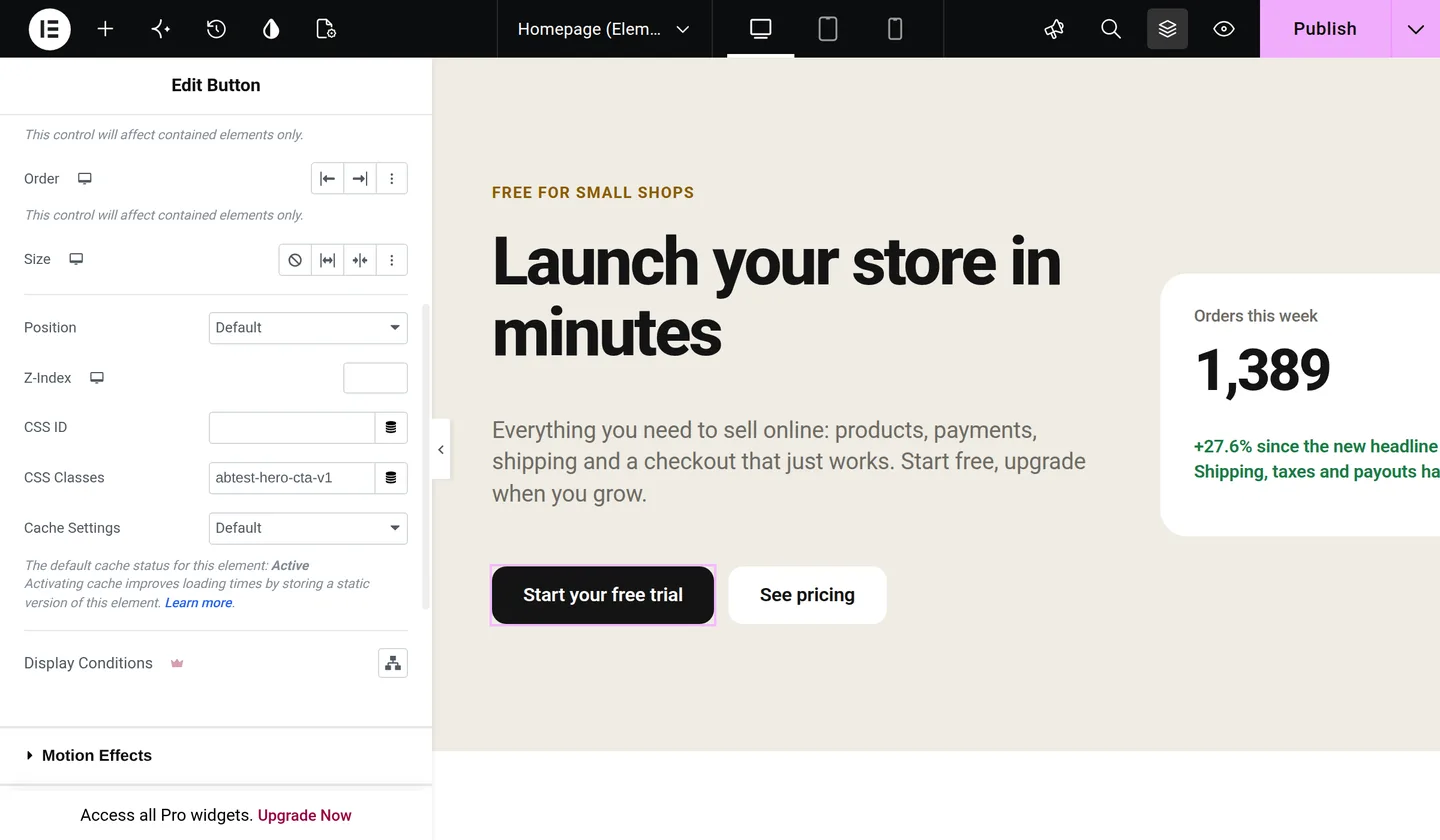
Verified against Elementor 3 and Elementor 4 in September 2026. Builders change their panels between major versions, so this page names the version it was checked against. Sources: Classes in Elementor, Elementor Version 4 FAQs.
Read the full how-it-works guideAnything you can give a CSS class: headlines, calls to action, hero images, pricing tables, section order, or whole landing pages via a URL/redirect test. Free covers A/B and A/B/n tests with up to six variants, as many running at once as you like, every goal including WooCommerce revenue and page targeting; Pro adds statistical significance, automation, audience targeting, traffic weights, custom CSS and the AI tools.
Using a different tool as well? ImproveAB works the same way in every major builder - one plugin across every site you build. Prefer a full walkthrough? Read the step-by-step Elementor tutorial.
How it works
No second page to maintain, no redirect, and the same cached HTML for every visitor. Here is the whole mechanism.
You build both versions in Elementor and give each one the class the plugin generated: the original gets the class ending in -default, the new version the one ending in -v1. Both sit in the same page.
improveab-hero-cta-defaultimproveab-hero-cta-v1
A visitor arrives on the cached page. Both versions start hidden, then the plugin's script assigns the visitor a variant in the browser and reveals only that one, so the original never flashes and no cookie is set.
50% see A50% see B
Impressions and conversions are written to your own WordPress tables. Nothing leaves the site, and the CDN keeps serving the same cached HTML to everyone.
your site → your database
FAQ
The things people ask before their first Elementor test.
Elementor 4, on an atomic element: select it -> Style tab -> Classes. Elementor 3, and any legacy widget inside Elementor 4: Advanced tab -> CSS Classes field. Use the class that matches the version you are editing: the one ending in -default on the original, the one ending in -v1 on the new version.
Yes. Build the second version as its own page and run a URL split test: the redirect happens in the page head before anything paints, each visitor stays on the version they first saw, and the variant's canonical points at the original by default.
Both work. Point-and-click runs on the front end of any page while you are logged in with the admin bar showing, so you can click a headline, button or paragraph that Elementor rendered and type the alternative without opening the editor. The class field is there when you would rather build the variant in Elementor.
No Elementor Pro is required. Elementor's class fields are part of the free version in both editors: the Advanced tab's CSS Classes field on Elementor 3 and on legacy widgets, and the Style tab's Classes control on Elementor 4's atomic elements. ImproveAB itself is free too.
Yes, for the new atomic elements: they take classes in the Style tab rather than the Advanced tab. Elementor made version 4 the default for new sites in April 2026, and the two systems sit side by side, so a page can hold both. Legacy widgets keep the Advanced tab's CSS Classes field, and ImproveAB matches on the rendered class either way.
The free plugin is in final testing. Join the waitlist and we will email you the day it lands.